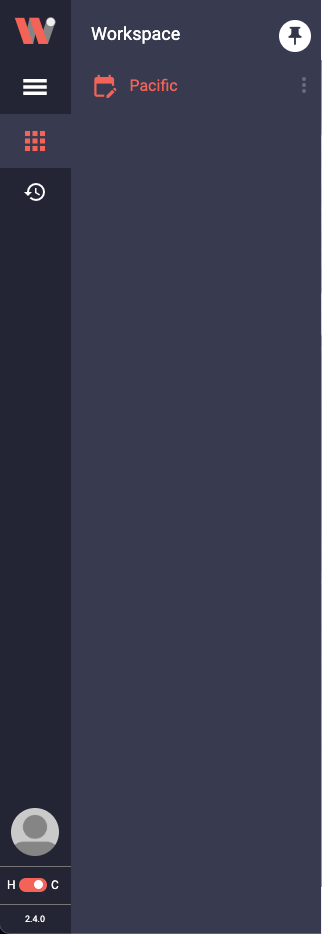
The left collapsible sidebar serves as a convenient navigation menu for accessing various features and settings within the Workbench. It includes essential sections such as the Work Tools menu which provides access to a range of data saving and productivity tools, save workspaces, and finally an open views menu which shows the list of opened Work-Windows at a glance. Additionally, Profile Management, where users can update their personal information and preferences, and a toggle switch to control the behavior of the left side menu according to mouse click and mouse hover.
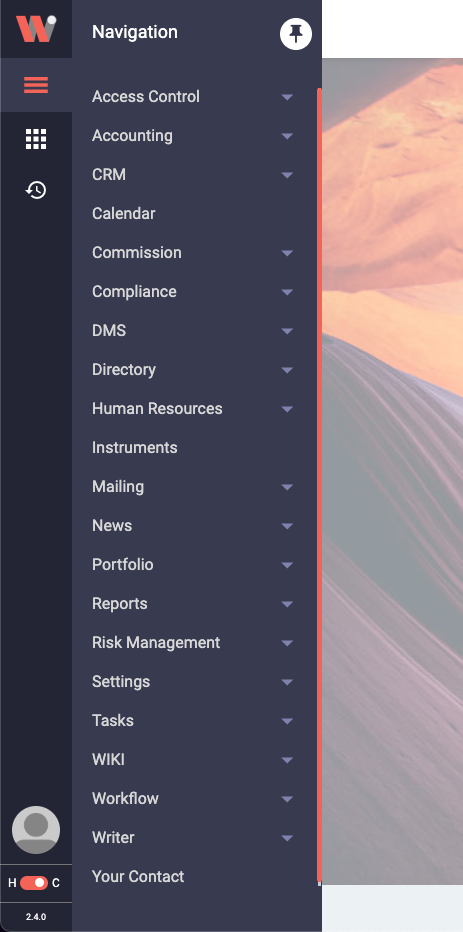
A list of a broad range of tools in the Workbench associated with different areas of work fields.
The list of tools will depend on the company's subscription, according to their daily needs.
TODO: WRITE ME
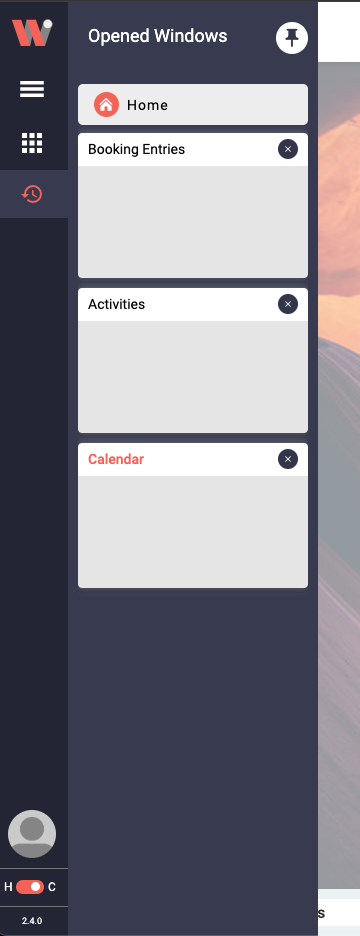
List of opened Work-Windows.
The opened Work-Window feature provides a convenient way for users to track and manage their opened windows within a session. This list displays all the Work-Windows that the user has opened, allowing them to quickly switch between different windows and resume their work seamlessly.
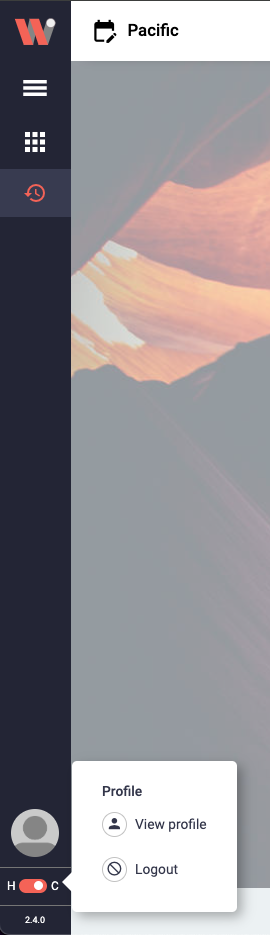
User Profile Settings allow you to manage and update your personal details and preferences within the Workbench.
Click on the profile image icon, and select Profile settings, you can modify your name, email address, password, and other relevant information.
To log out, simply click on your user profile icon again and choose the "Log Out" option. This will securely end your session and redirect you to the login page when you wish to access the Workbench again.
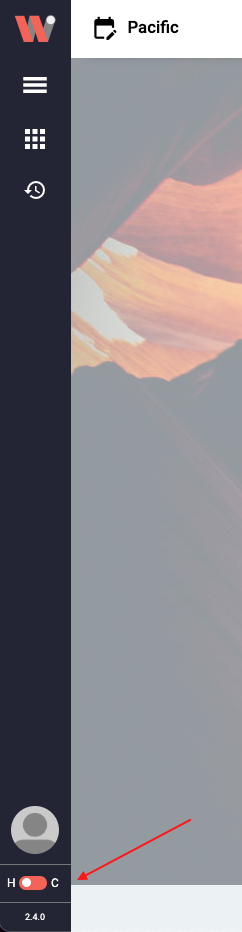
The toggle button allows the user to switch the behavior of the sidebar between open on mouse-hover and open on mouse-click.
The hover mode controls the visibility of the left sidebar menu on a mouse hover. When enabled, the left sidebar menu will appear automatically when the user hovers their mouse over the designated left sidebar area. To close the left sidebar menu drawer, move away the mouse from the menu and drawer area. To activate the hover mode, toggle the "Hover Mode" option to "H".
The click mode controls the visibility of the left sidebar menu on a mouse click. When enabled, the left sidebar menu will appear automatically when the user clicks their mouse over the designated left sidebar area. To close the left sidebar menu drawer, click somewhere outside of the menu and drawer area. To activate the click mode, toggle the "Click Mode" option to "C".
