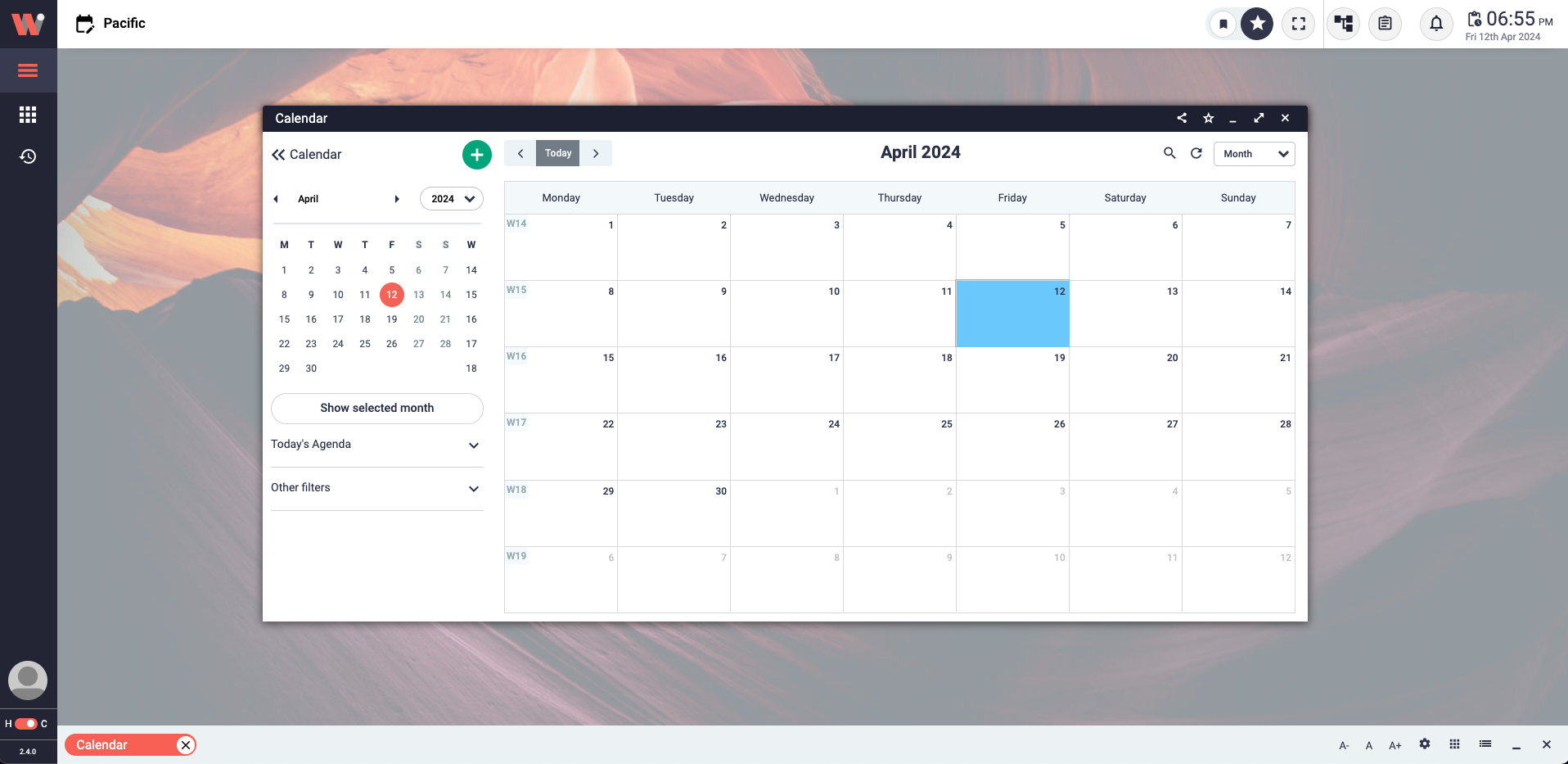
Calendar as an Example Work-Window.
The Work-Window is a versatile module within our Workbench software, providing users with a dynamic and interactive environment for performing various tasks. Similar to a browser window or a traditional widget, each Work-Window is a module in the Workbench that contains data, where you can do actual tasks, create, read, update, and delete data in the form of tables, charts, forms, and lists. With its intuitive interface and comprehensive functionality, the Work-Window empowers users to efficiently manage and manipulate their data, enhancing productivity and streamlining workflows. Whether it's analyzing data, generating reports, or performing complex operations, the Work-Window offers a robust and flexible solution for accomplishing tasks within the Workbench ecosystem.
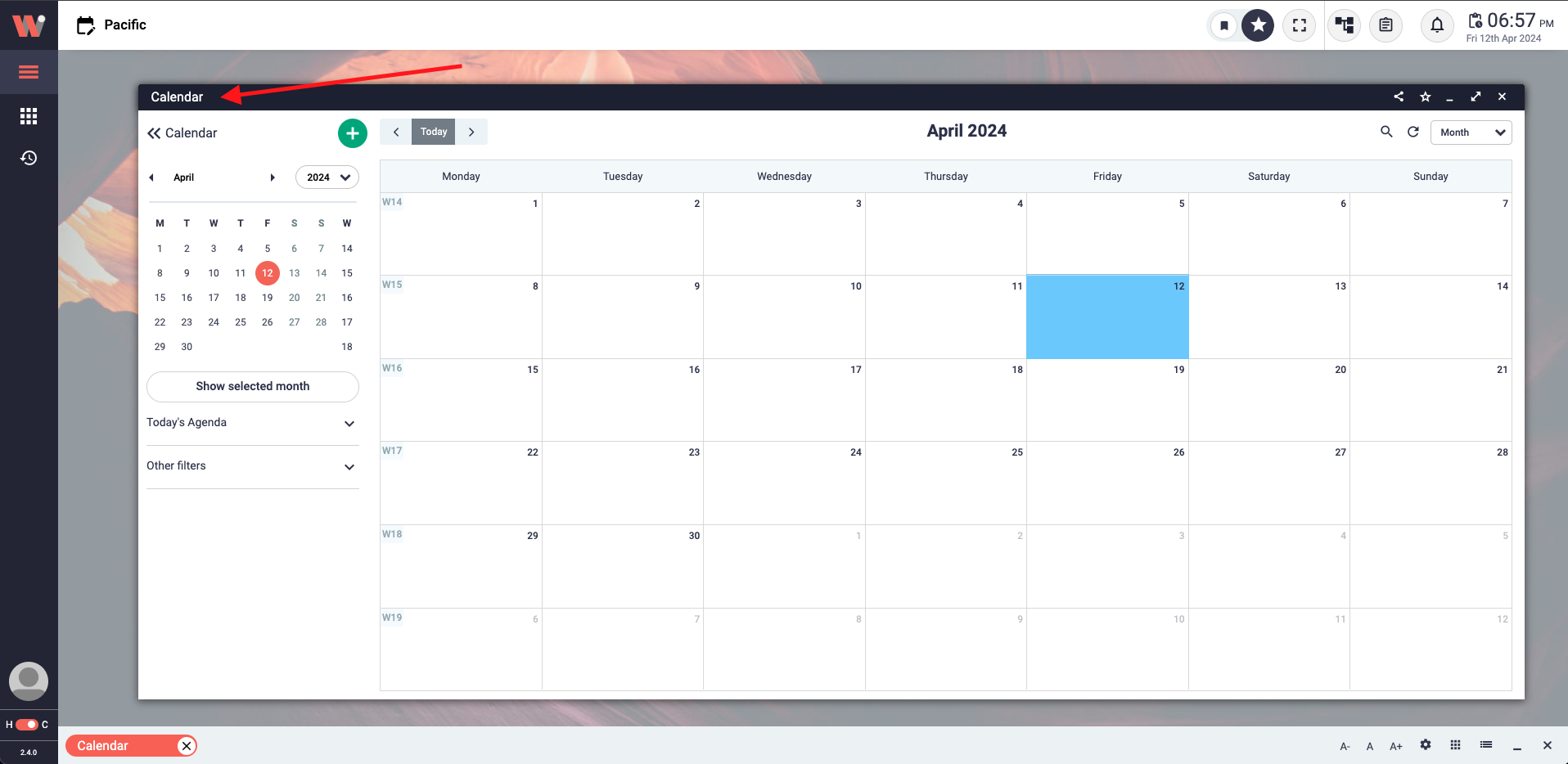
Work-Window header named Calendar.
It prominently displays the title of the Work-Window, allowing users to quickly identify the content they are working on. The Header also includes various buttons to enhance user experience and facilitate task management. The share button enables users to easily share their work with others, while the save as a favorite button allows quick access to frequently accessed content. The minimize, maximize, and close buttons provide standard window management options, enabling users to control the size and visibility of the Work window as needed.
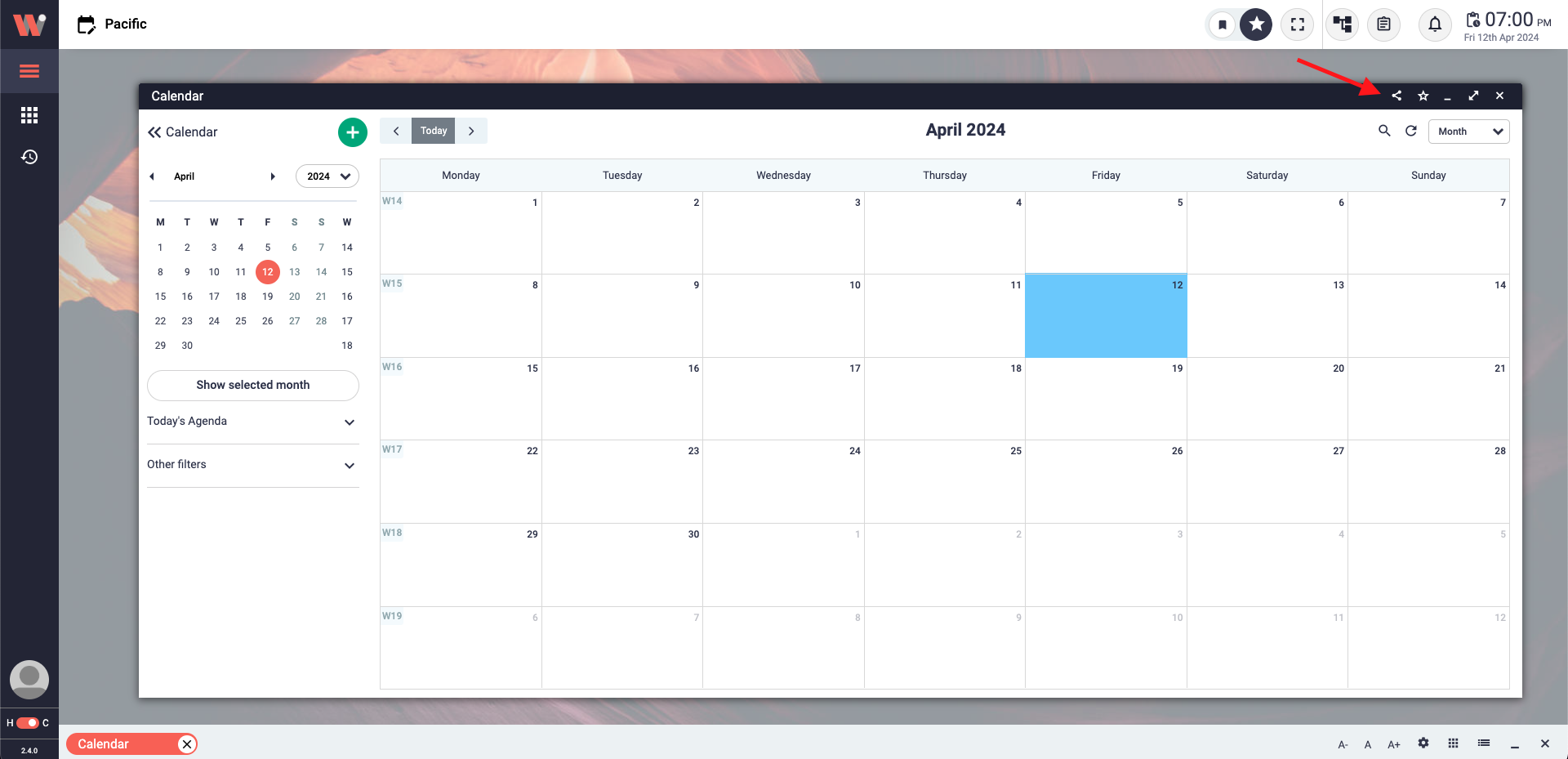
Share button on the Work-Window header.
The Share button is a powerful feature that allows users to effortlessly share the view of their Work-Window with others. When the Share button is clicked, a side window opens on the right side of the Work-Window. This side window serves two primary purposes: sharing the current view of the Work-Window and sharing a specific task with someone.
To share the view of the Work-Window, simply click the Share button, and the side window will display the URL of your Work-Window. This enables you to show others exactly what you're working on, allowing for easy collaboration and feedback. Additionally, the Share button allows you to share a task with someone by providing the task name and the person you wish to share the Work-Window with. Both are done by filling out a simple form within the side window. By specifying the task name and the recipient, you can easily assign and delegate tasks, enhancing productivity and teamwork.
Overall, the Share button provides a convenient way to share your Work-Window's view and collaborate effectively by sharing tasks with others. Enjoy the seamless sharing experience and streamline your workflow with this powerful feature.
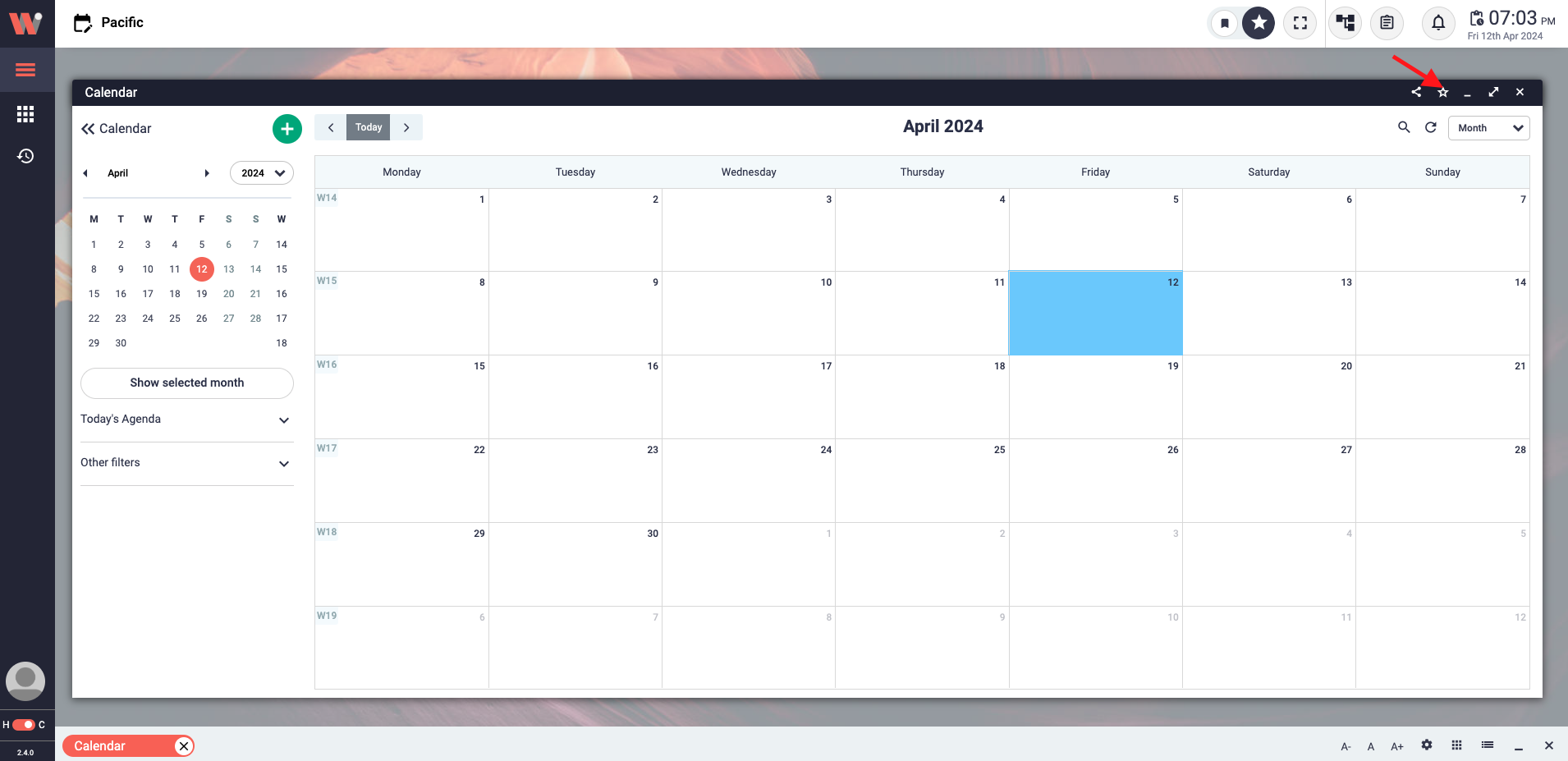
The star icon on the header opens the form for saving as a favorite.
The Favorite button is a convenient feature located right to the share button in the Work-Window header, represented by a star icon. By clicking on this star icon, users have the ability to save the current Work-Window as a favorite. To do this, simply fill in the desired name and select an icon for the Work-Window. Once saved, users can easily access their favorite Work-Windows by clicking on the Favorites (star icon) in the Workbench Header. This functionality allows for quick and effortless retrieval of frequently used Work-Windows, enhancing productivity and user experience. Note: Please don't confuse with the Workbench header favorite icon and the Work-Window header favorite icon.
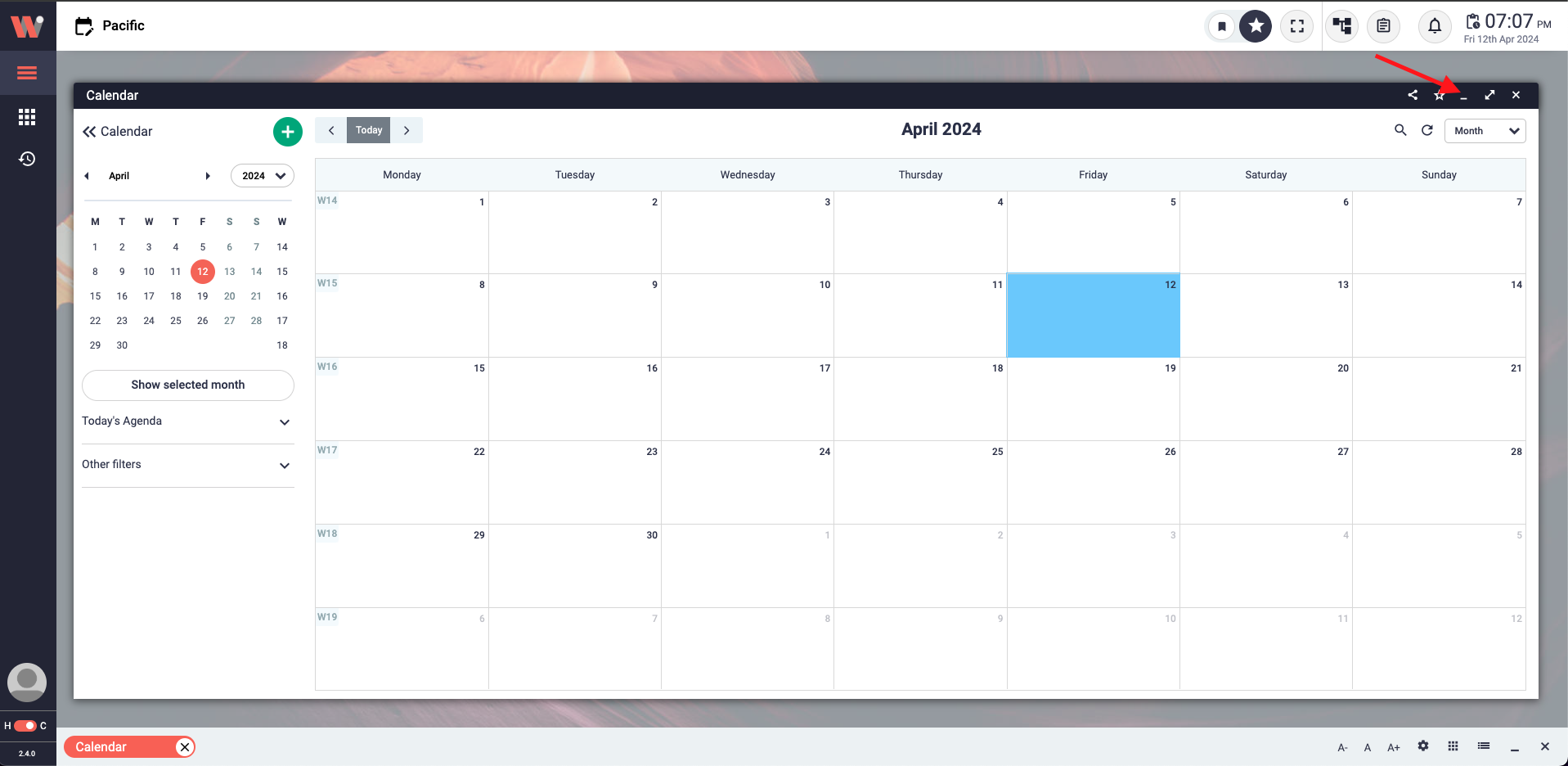
The minimize button on the header.
The minimize button is a feature on the Work-Window that allows users to reduce its size and temporarily hide it from the view area. By clicking on the minimize icon (_) to the right of the favorite icon on the Work-Window, the Work-Window will be minimized and no longer visible on the screen. To restore the Work-Window and bring it back into view, users can simply click on the corresponding label located on the bottom bar. Doing so will restore the Work-Window to its previous size and position, ensuring a seamless transition and allowing users to continue their work without interruption.
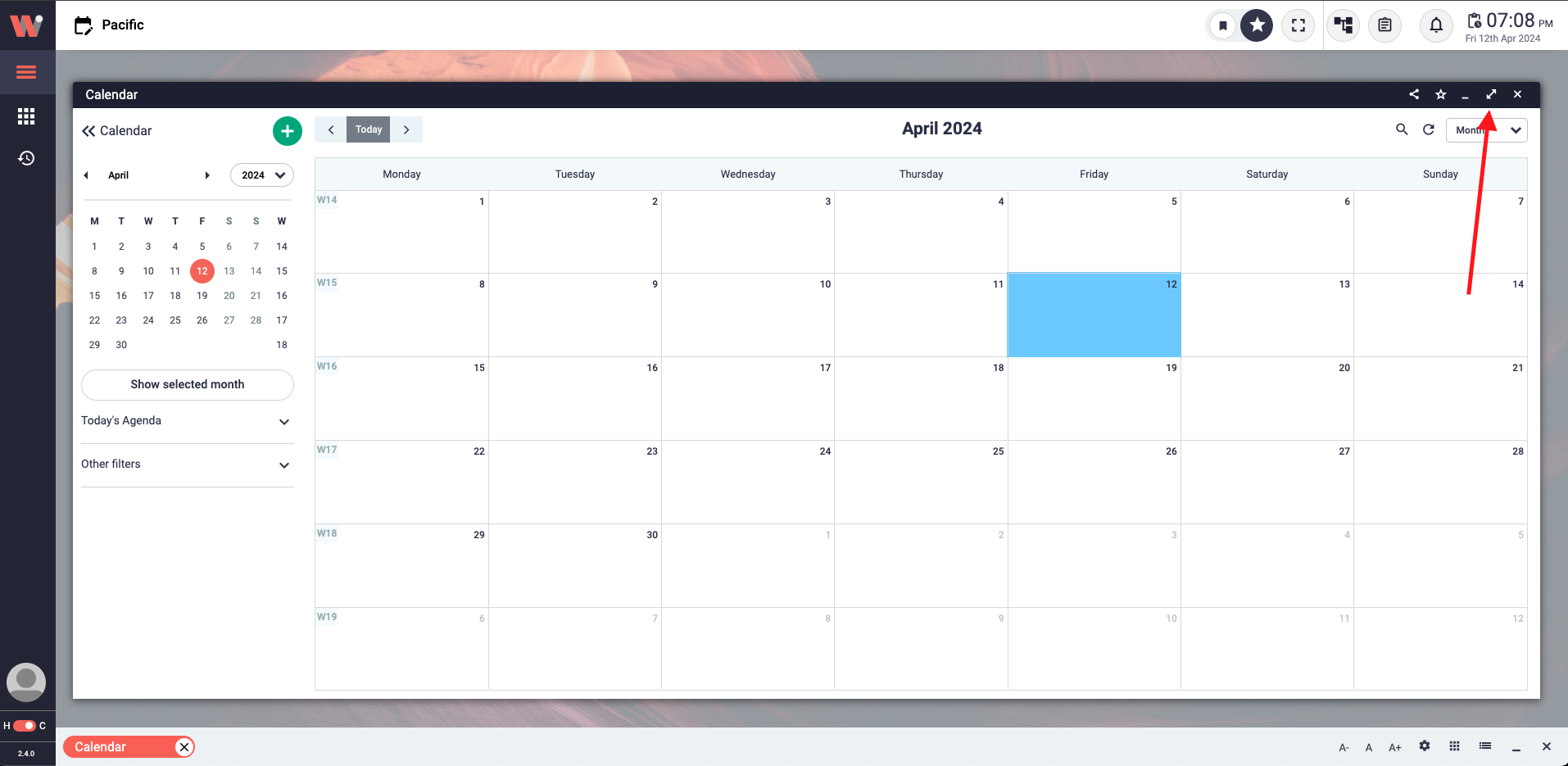
The maximize button on the Work-Window header.
The maximize button (⤢) in the Work-Window allows you to expand the window to occupy the entire view area. By clicking on this button, the Work-Window will be resized and repositioned to fit your view area inside the Workbench, providing you with a larger workspace. To restore the Work-Window to its previous size and location, simply click on the minimize icon (two arrows point touching) while the window is maximized. This action will return the Work-Window to its original dimensions, allowing you to continue your work in the desired size and position. Note: Don't confuse with the full-screen mode and maximize the Work-Window header
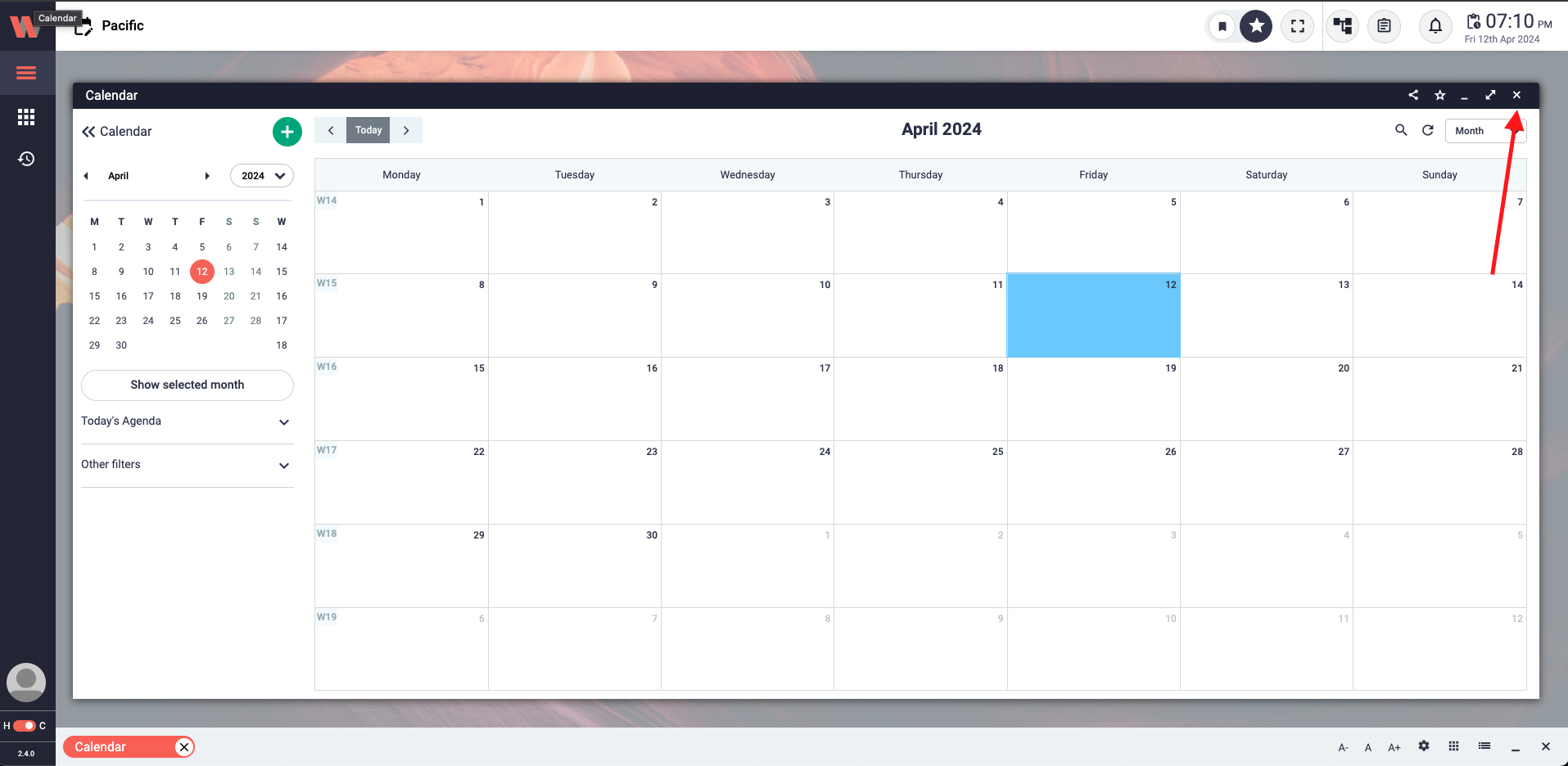
Close icon on the Work-Window header.
The close button (x) in the Work-Window serves the purpose of closing the active Work-Window. When the user clicks on the close button, the current Work-Window will be closed, and it will no longer be accessible until it is reopened. To reopen the Work-Window, the user can navigate to the Main menu located in the left sidebar or access it from the favorites section in the Workbench header if it has been saved as a favorite. Closing the Work-Window ensures a streamlined user interface by removing unnecessary clutter while providing easy access for reopening when needed.
The content displayed in the Work-Window showcases a wide range of information, including lists, forms, charts, tables, calendars, and more. It serves as the primary interface for users to view and interact with the content within the application. Whether presenting structured data, capturing user inputs, visualizing trends, or scheduling events, the content display empowers users to efficiently navigate and manipulate information within a single unified environment. With its flexible design and intuitive controls, users can seamlessly engage with the displayed content, enhancing productivity and facilitating effective decision-making.
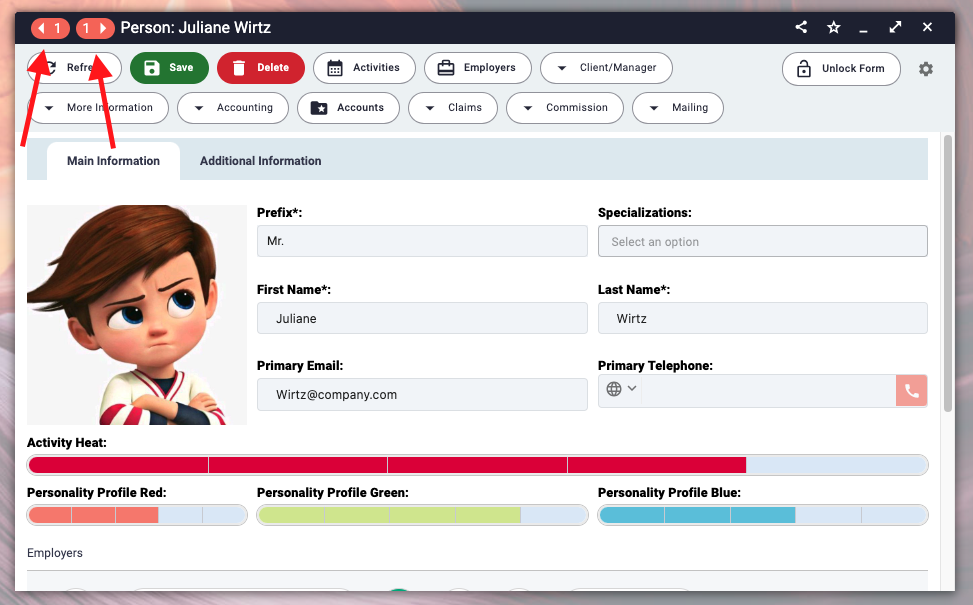
Backward and Forward button on the top-left of the Work-Window header.
The Backward and Forward buttons are designed to facilitate navigation within a hierarchical list structure, allowing users to move between different levels of items within a Work-Window. These buttons become visible when a user opens an item in the list and proceeds to explore further lists nested within it. The buttons are indicated with numbers, displaying the count of views the user has moved forward and backward within the same Work-Window. By utilizing these buttons, users can easily backtrack or move forward within the hierarchical structure, enhancing their overall navigation experience.
Zen Mode is a powerful feature designed to enhance your focus and productivity while working on forms. To enable Zen Mode, simply locate the gear icon within the form's Work-Window. By clicking on the gear icon, a list of settings will appear, and you can select the Zen mode option from there. Once Zen Mode is activated, your entire screen will be maximized, eliminating distractions such as the Work-Window header, Workbench header, and even elements within the internet browser, leaving only the task you are currently working on. To exit Zen Mode, simply press the Escape key. Enjoy an uninterrupted and hyper-focused work experience with Zen Mode!
To be filled...
