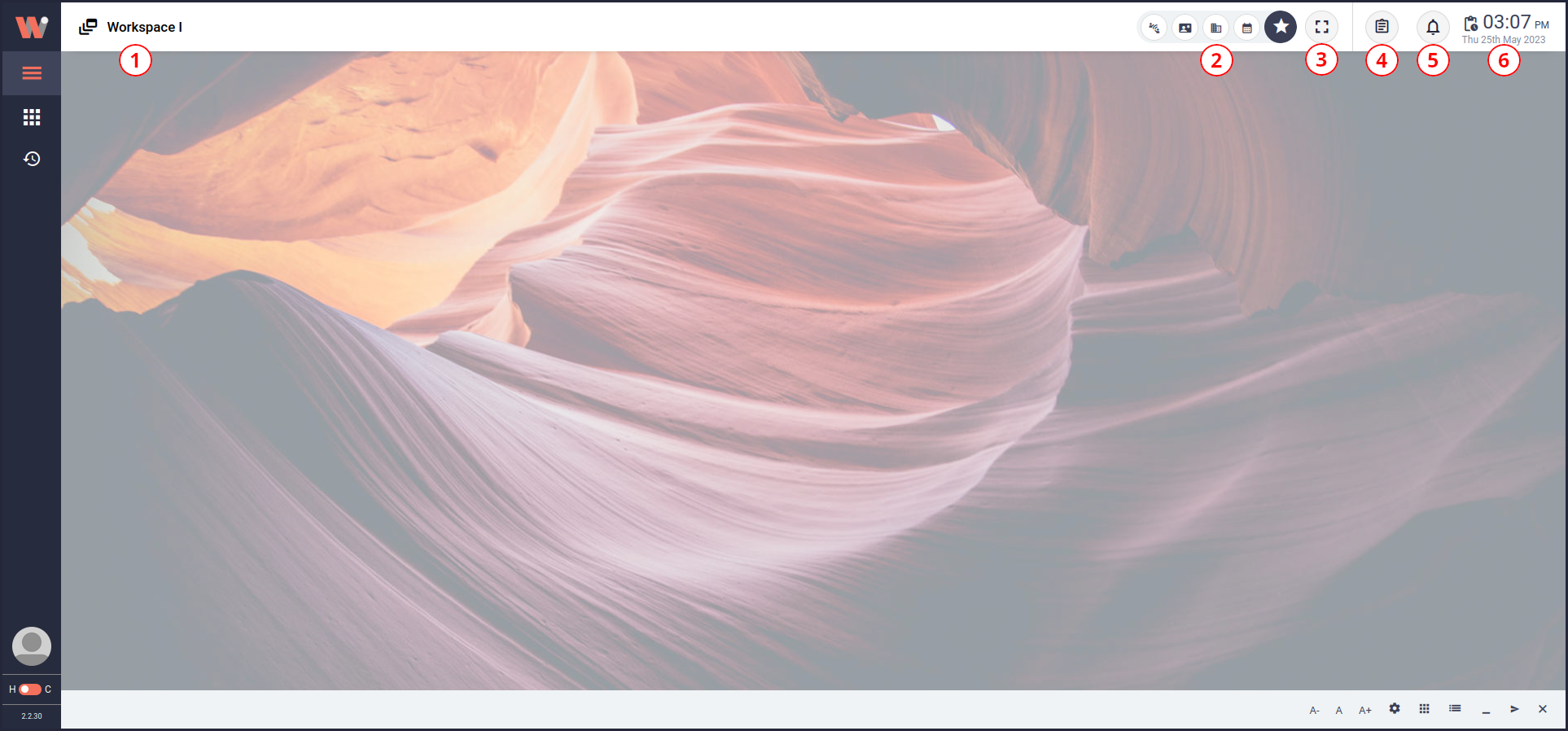
Workspace with annotated header
The Workbench header will always be visible (except if a view is using the Zen Mode) and holds the workspace title area (1), the user's favorite views (2), the view mode toggle button (3), the buttons for the release notes (4) and the notifications (5), and the current time and date (6).
Each of these elements is described in more detail in the respective section below.
The title area is purely informational and shows the title of the currently active workspace if the view area is in the Multiple Views Mode. Otherwise, this shows the view's title. The title of a workspace is preceeded by the workspace's icon while the view titles are simply text.
Each view can be stored as a favorite view, which will then be accessible on the header from every workspace. This allows to set up a view that is frequently required, store it for later use, and keep the workspace clean. The favorites list can be toggled by clicking on the button with the star icon.
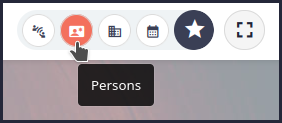
A favorite showing its title as a tooltip.
Each favorite is associated with an icon that shows on the header. The title of the view is hidden for space efficiency reasons and only shows when hovering over the icon with the cursor.
The Favorite Views List will extend to accommodate all favorite views until all available space is used up. After that, there will be arrows that allow you to scroll through the views.

The favorite views list shows its scroll arrows.
The order of the favorites can be changed at any time by simply dragging the icon to the position it is supposed to be.

A favorite view being dragged to a different position.
The steps needed to create, modify, or remove a favorite view are each described in the corresponding section below.
To change one or more favorite views, you must first click on the gear symbol on the bottom bar to enable the edit mode. When the edit mode is enabled, the favorite view will start to jiggle and their border will turn orange. Additionally, the start button on the right end of the favorite views list shows an orange badge on its top right.
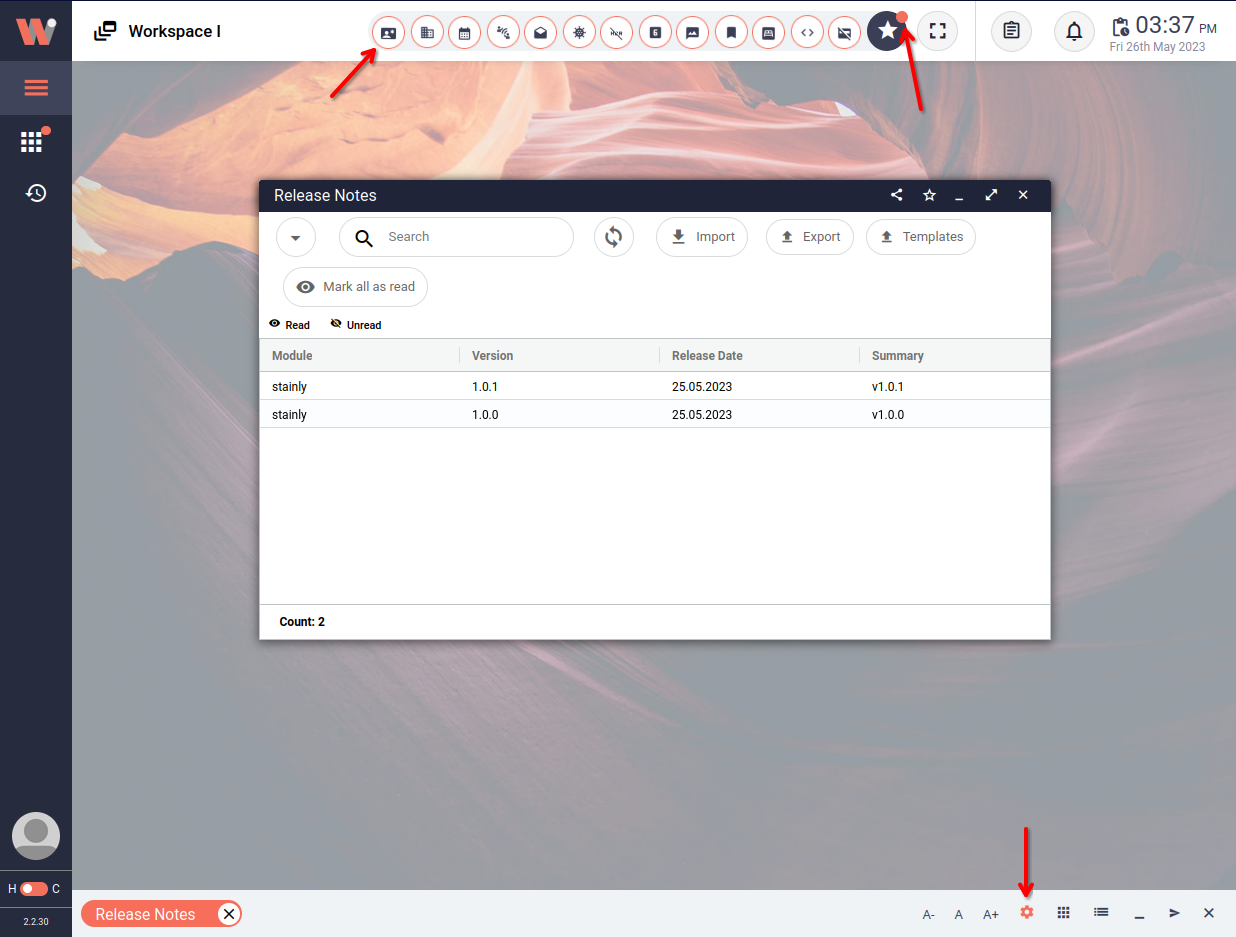
The main UI with Edit Mode enabled.
Once the edit mode is enabled, you can click the favorite view that you want to change. This will open the favorite's edit form in a modal (a form of pop-up window).
The form allows you to change the icon or the title (tooltip content) if the favorite. Changes can be canceled or confirmed by clicking the appropriate button at the bottom of the modal.
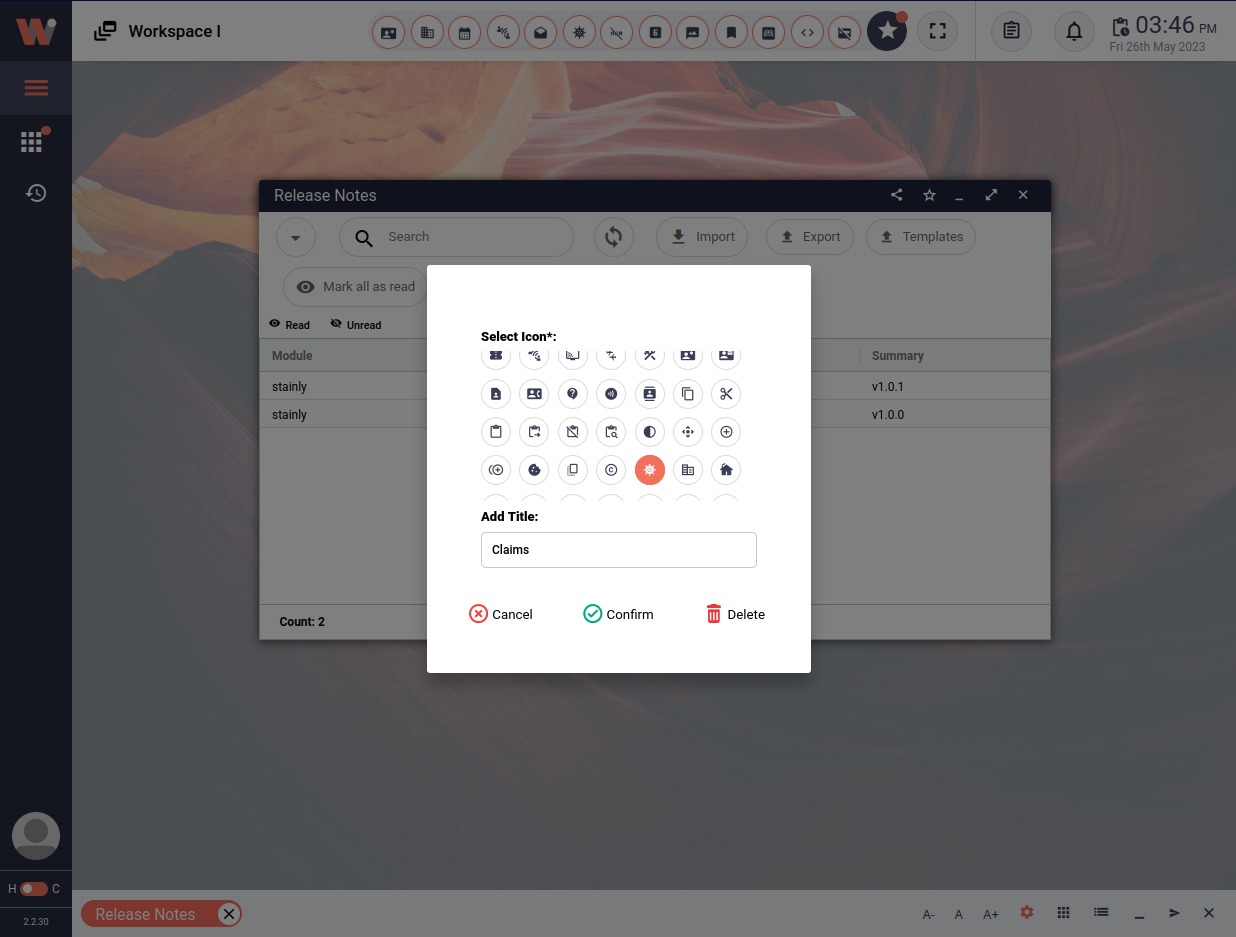
The form for editing a favorite view entry.
A favorite view can be removed in two ways:
Open the edit form of the favorite as described in the Modify Section in the Workbench Header documentation, click the "Delete" button, and confirm on the next modal.
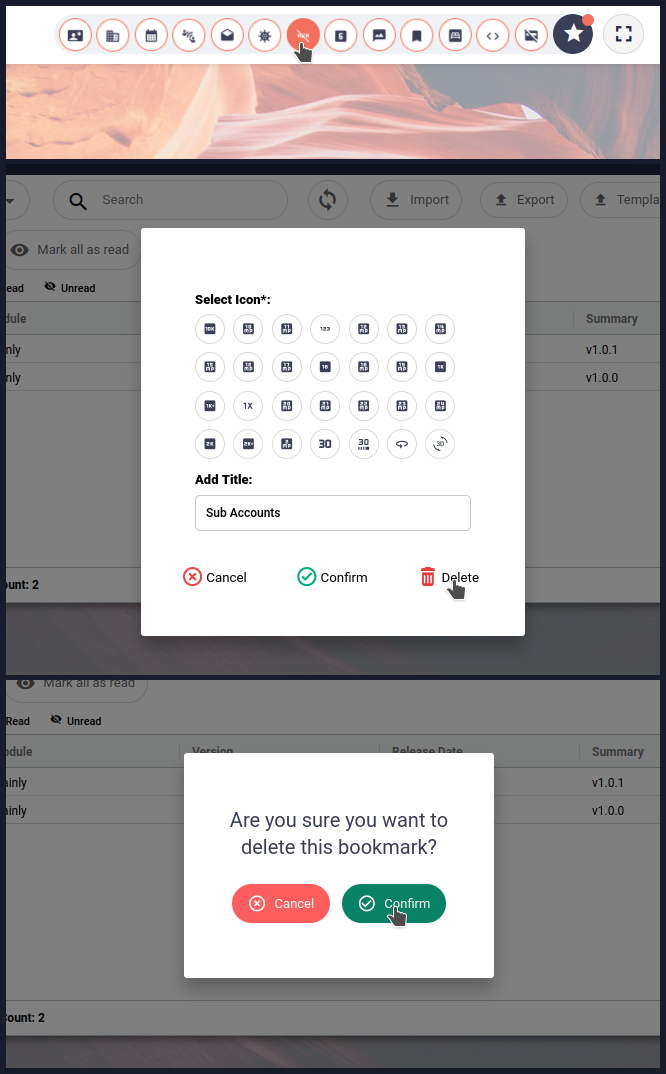
Removing a favorite entry via the edit form.
Open the corresponding view and click on the view's favorite button, then click on the delete button on the context, and confirm the deletion.
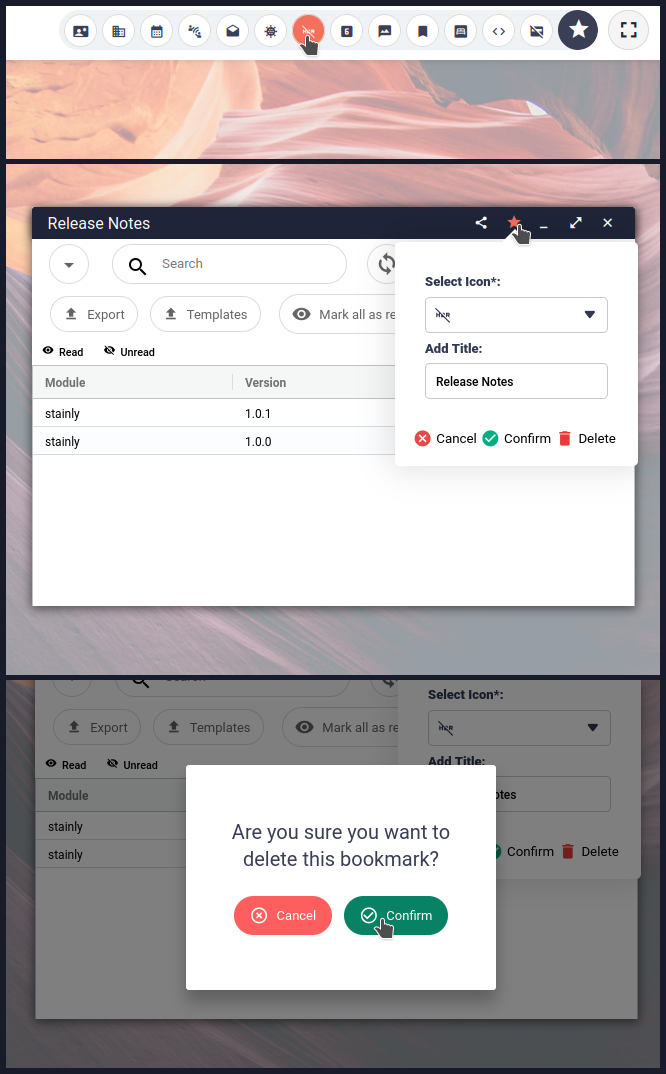
Removing a favorite entry via the view's favorite button.
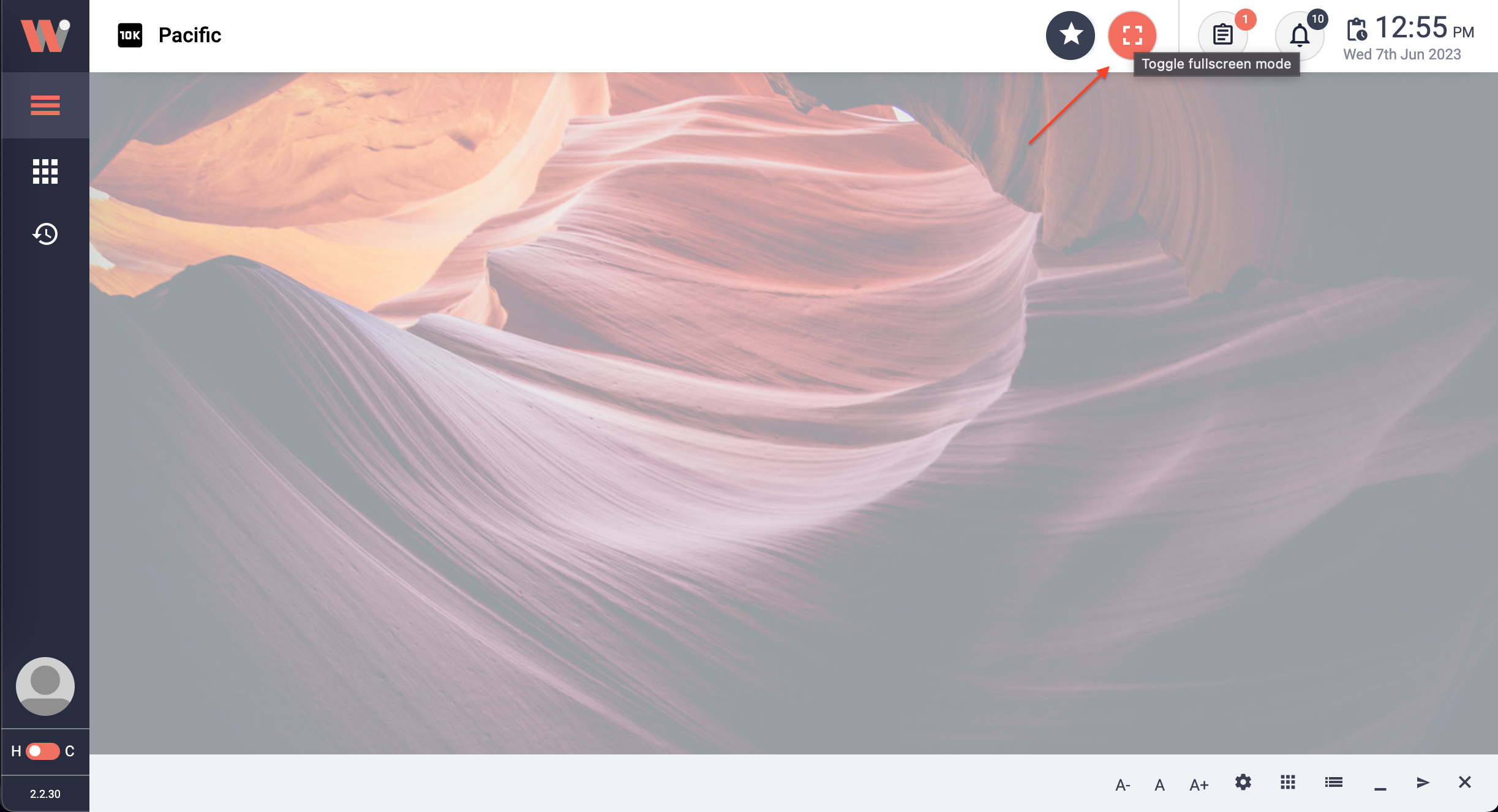
Toggle the fullscreen button in the red square.
The toggle button is implemented to switch between Full-Screen and Normal Mode. The Full-Screen Mode maximizes the user's viewing experience by expanding the Work-Window to take up the entire screen when it is engaged. In contrast, the Normal Mode restores the Work-Window to its original size and position when disabled, enabling the user with regular multitasking.
Note: You need at least one Work-Window to see the view toggle mode in action.
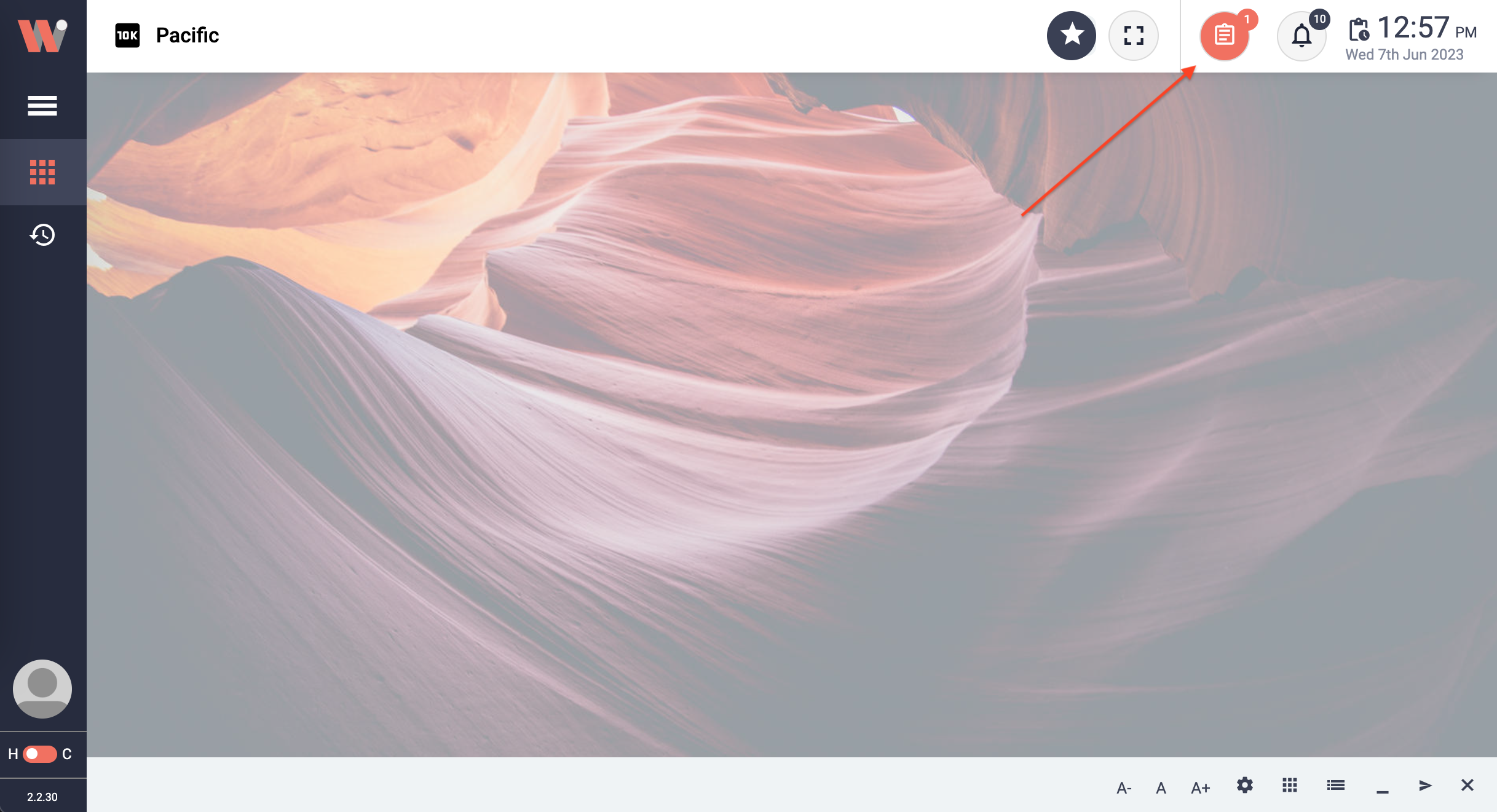
Release notes button.
Release Notes that give users quick access to information about the most recent software version. When the button is pressed, a Work-Window containing the date and a succinct description of the new release will open.
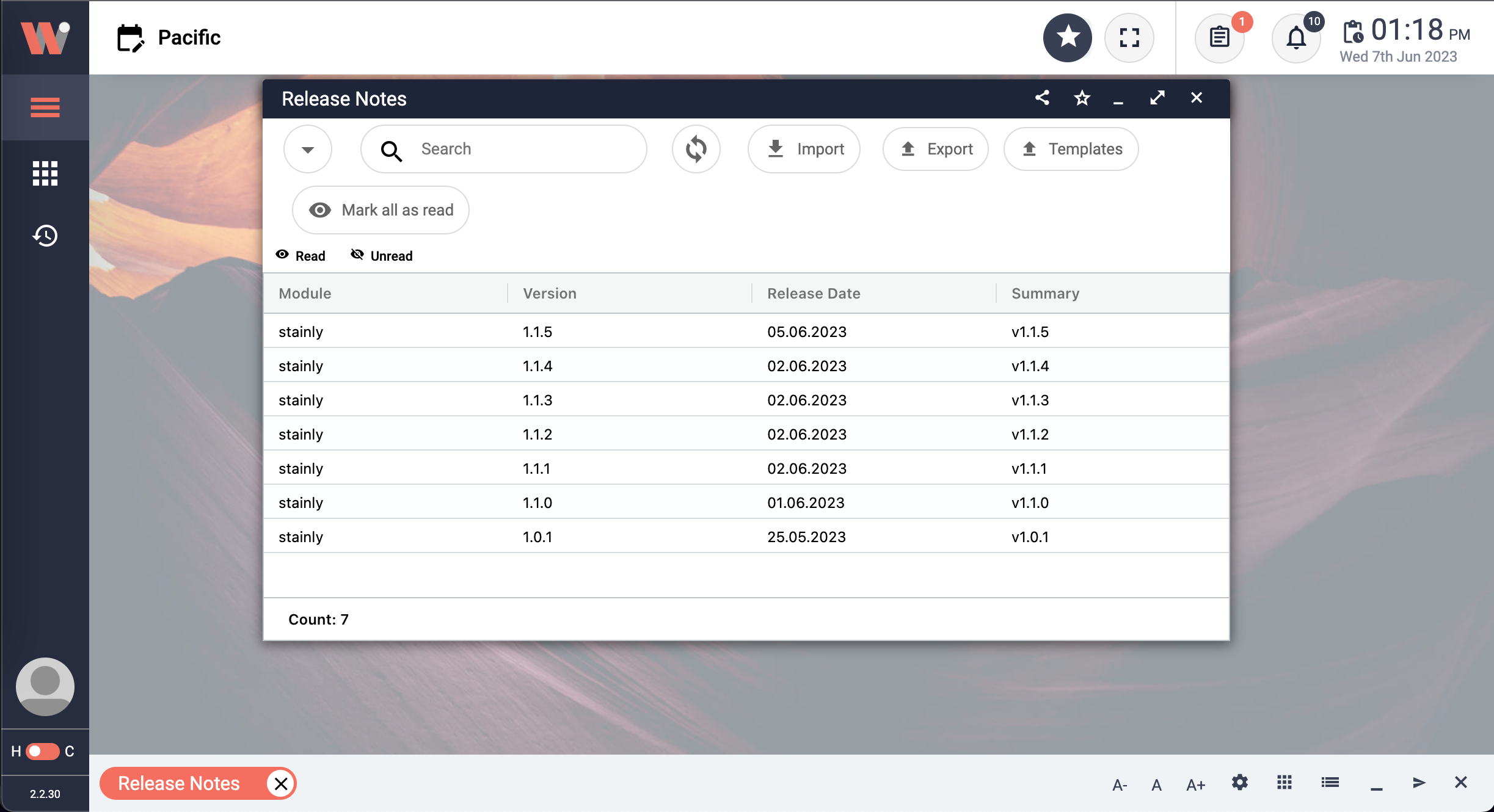
Release notes Work-Window.
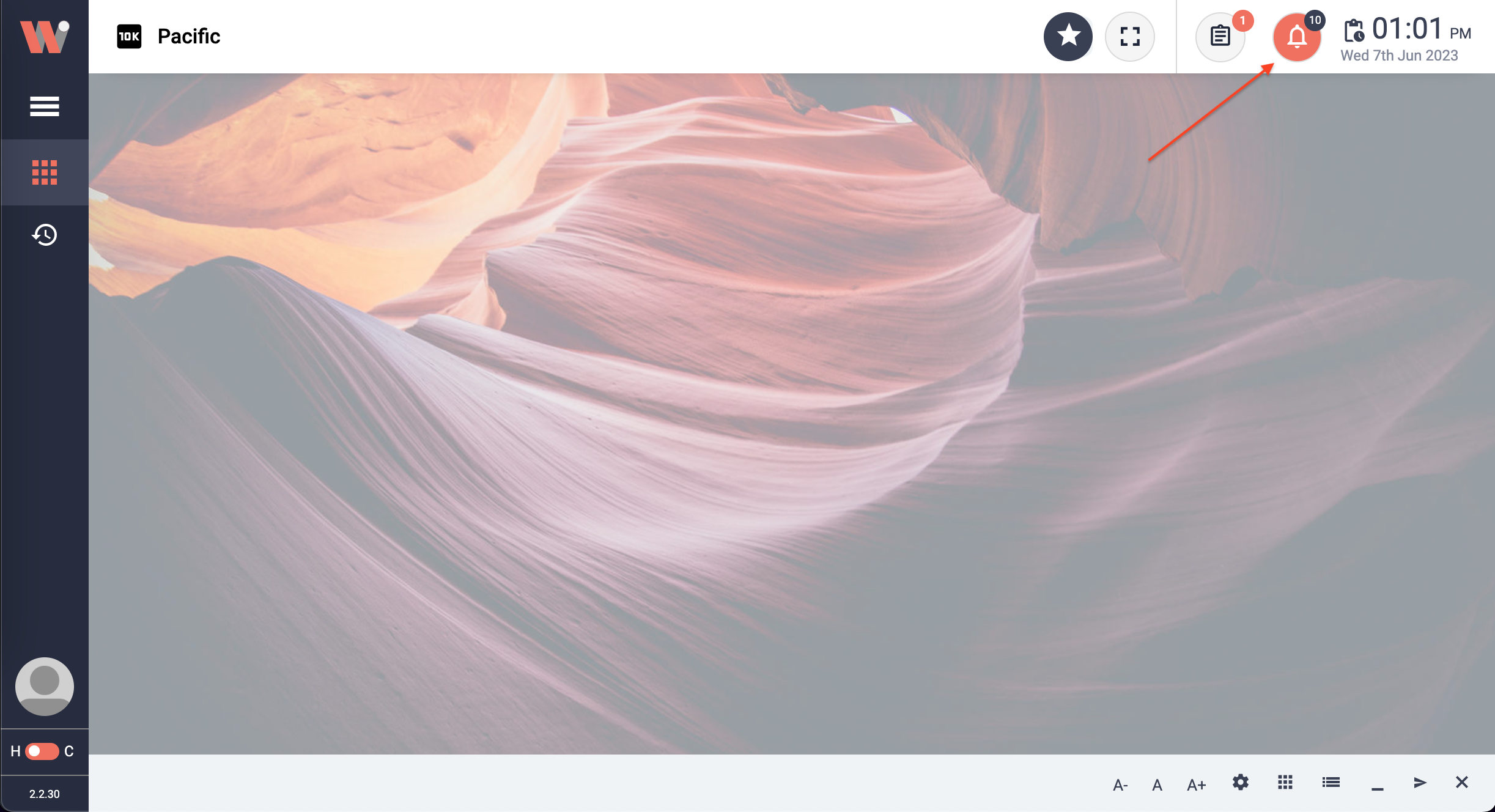
Notifications button.
The Notification Button provides users with a quick and convenient way to access their latest notifications. When clicked, it opens a drawer on the right side, displaying a list of notifications related to the activities the user is involved in or subscribed to.
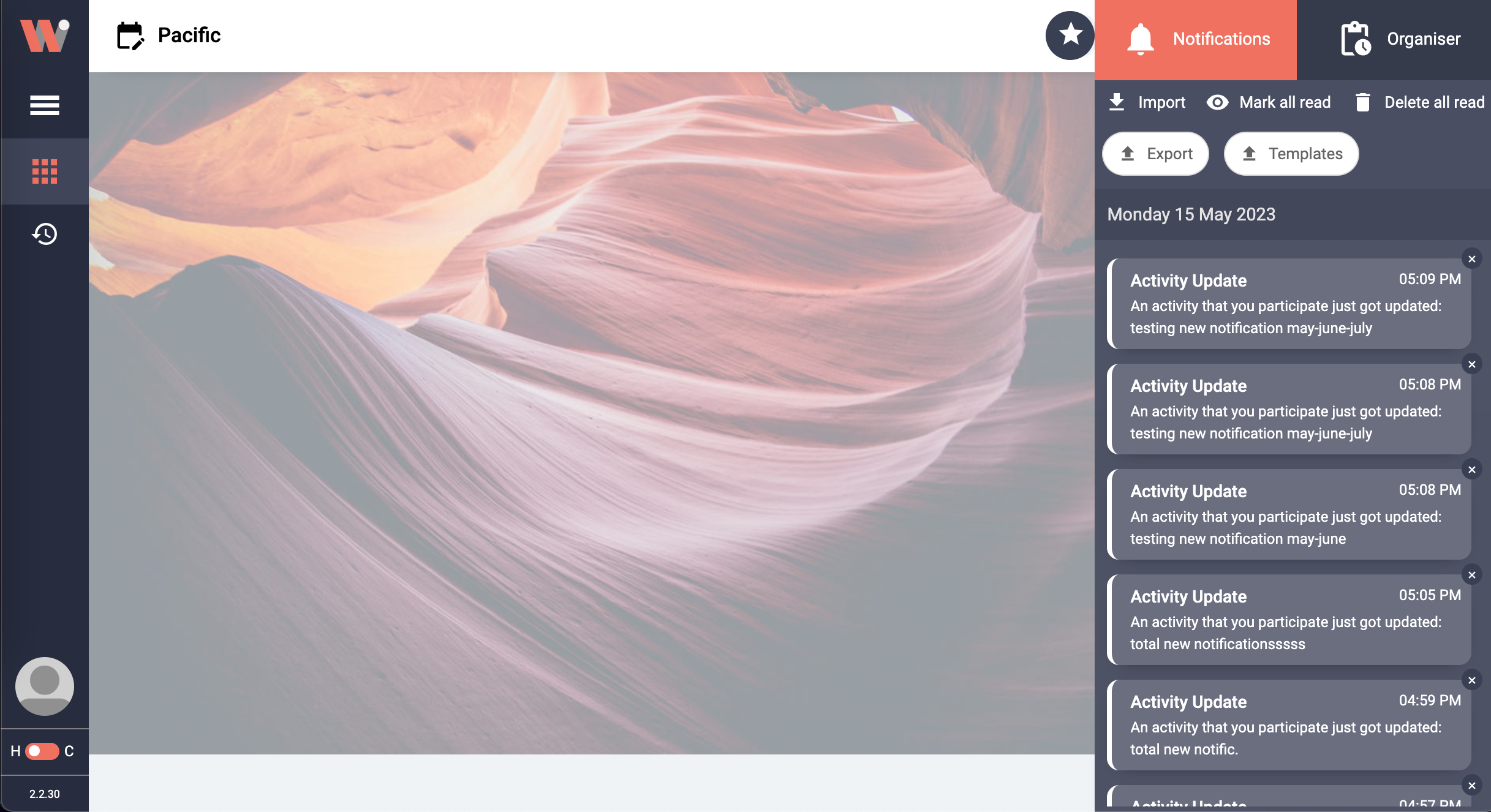
Notifications side drawer with a list of notifications.
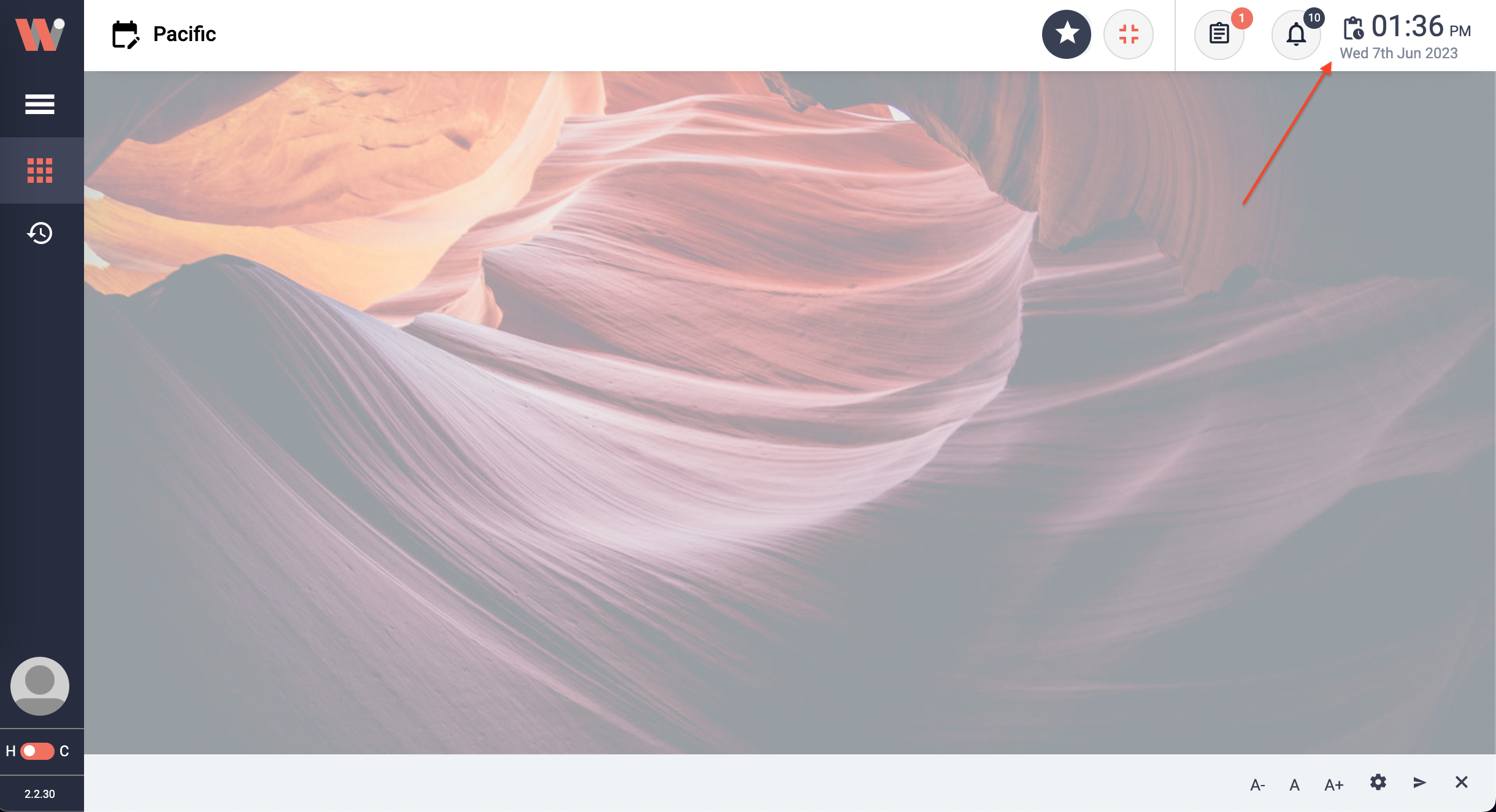
Date and time.
The date display at the top right corner of the Workbench header provides the current time, weekday, and date information. To access additional functionality, simply click on the displayed date and time, which will open an organizer drawer on the right side. This drawer contains a calendar for scheduling and viewing dates, as well as a list of your latest activities for quick reference and navigation.
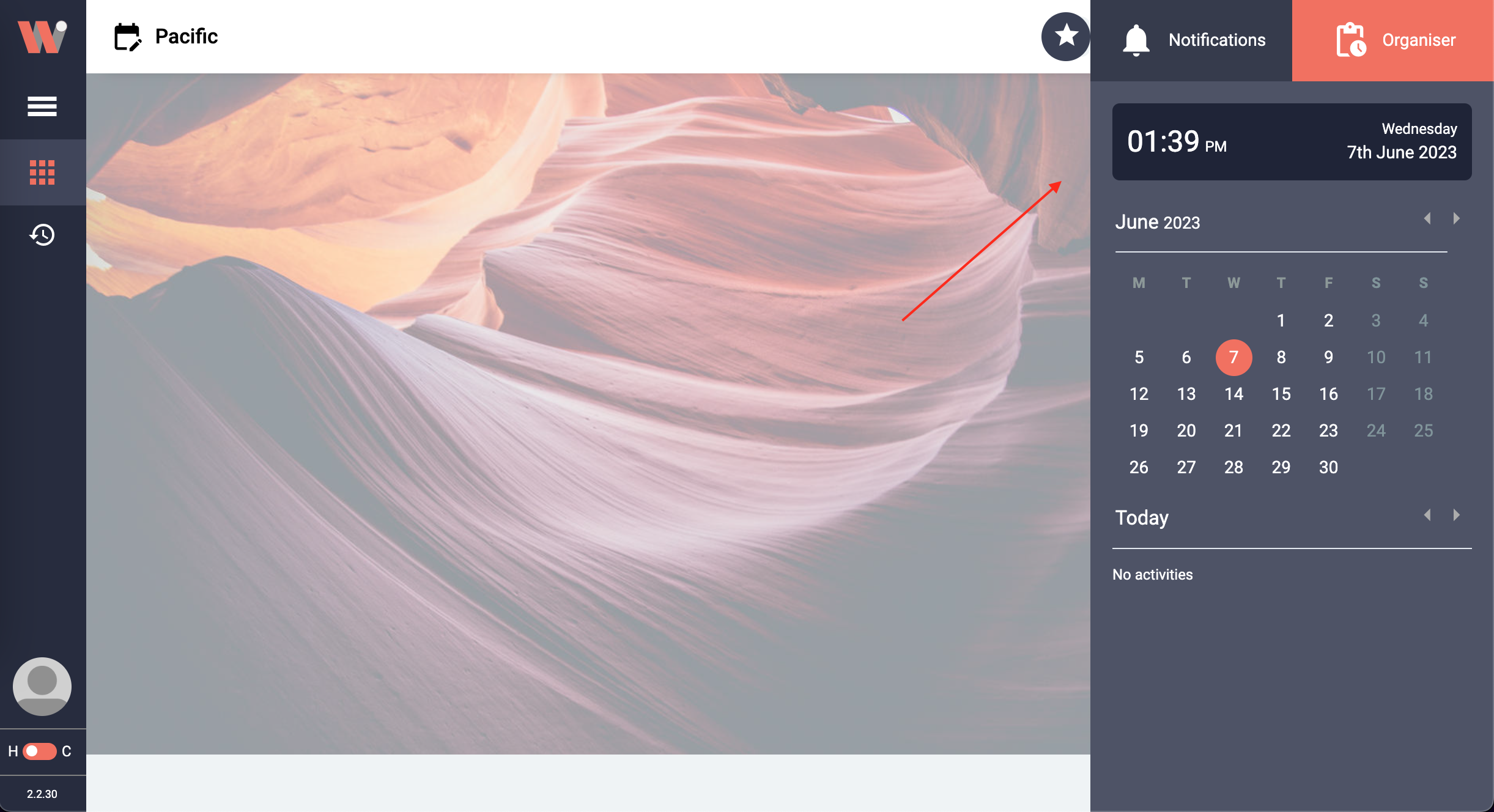
Organizer drawer.
Clicking on the date and time opens an organizer drawer with a
Time and date information
Calendar View: Provides users with a quick month view.
Activity List: Displays a list of upcoming and past activities, allowing users to quickly navigate and manage their events through previous and upcoming days.
